
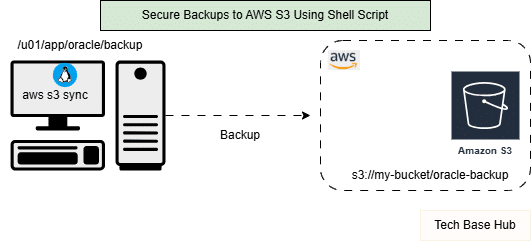
At first, S3 Backups were handled manually. Over time, that became risky and inconsistent. This script was added to automate the process and keep a reliable copy of the data in AWS S3.
S3 Backup Prerequisites:
- Linux server
- AWS CLI installed and configured
- IAM user with S3 access
- Network connectivity to AWS
Click here to go to the GitHub repos link
Shell Script for AWS S3 Backup
#!/bin/bash

# Configuration
SOURCE_DIR="/u01/app/oracle/backup"
S3_BUCKET="s3://my-bucket/oracle-backup"
LOG_FILE="/tmp/s3_backup_$(date +%F).log"

# Start backup
echo "Backup started at: $(date)" >> "$LOG_FILE"

# Run S3 sync
aws s3 sync "$SOURCE_DIR" "$S3_BUCKET" >> "$LOG_FILE" 2>&1

# Check status
if [ $? -eq 0 ]; then
    echo "Backup completed successfully at: $(date)" >> "$LOG_FILE"
else
    echo "Backup FAILED at: $(date)" >> "$LOG_FILE"
    exit 1
fi
S3 Backup Script Works
- Defines the source directory to be backed up
- Syncs files to the specified S3 bucket
- Uploads only new or modified files
- Creates a date-wise log file for audit and troubleshooting
- Validates backup success using exit status
Log File Example:
Backup started at: Sat Dec 20 01:30:01 IST 2025
upload: ./file1.bak to s3://my-bucket/oracle-backup/file1.bak
Backup completed successfully at: Sat Dec 20 01:31:10 IST 2025
Scheduling the Backup Using Cron tab:
To run the backup daily at 11:00 PM:
0 23 * * * /u01/scripts/s3_backup.sh
Note: This way, backups occur automatically without requiring manual intervention.
Things to keep in mind:
- Make sure AWS CLI is installed and configured
- Use proper IAM permissions for S3 access
- Check logs occasionally
- Test restore once in a while to confirm backups are usable
